
How to Use a Family Location-Sharing App to Keep Your Kids Safe: 6 Practical Tips!
July 18, 2024
Children’s safety is always the top concern on every parent’s mind. Losing sight of them for just a few minutes is enough to send a parent’s adrenaline through the roof — let alone not knowing where they are at all… Striking a balance between protecting and letting go is one of the biggest challenges for parents today. This article shows you how to make the most of a family location-sharing tool — MixerBox BFF — and shares smart ways to weave technology into everyday parenting, so you can use it to keep your kids safe without taking away the freedom they need to grow.
Dear moms and dads, do the child-safety incidents that keep showing up in the news worry you? Stories like these strike a nerve with every parent. In the face of these potential dangers, we all ask ourselves: “Do I really have to watch my kids 24/7?” “Is there a better way to keep my little ones safe?” And once they start elementary school: “When can I let them go out on their own?”
We can’t be by our children’s side every moment, so the most important thing is to teach them, through the right guidance, how to recognize danger. But some innovative tools can help too. This article introduces MixerBox BFF and explains how to use a family location-sharing app as your partner in keeping your kids safe.
Table of Contents
- What Is a Location-Sharing App? What Is BFF, the Family Locator?
- 6 Family Location-Sharing Tips to Keep Your Kids Safe
- 🟡 Tip 1: Check your child’s location and how long they’ve been there in real time
- 🟡 Tip 2: The new Timeline feature makes it easy to see where they’ve been
- 🟡 Tip 3: Set up custom personal places
- 🟡 Tip 4: Turn on arrival/departure alerts
- 🟡 Tip 5: Add a home screen widget
- 🟡 Tip 6: Get automatic low-battery alerts
- Sharing Comes from Trust and Understanding
What Is a Location-Sharing App? What Is BFF, the Family Locator?
MixerBox BFF is a free location-sharing app built by MixerBox’s Taiwan-based development team. It ranked among the top 3 free apps in Taiwan on Apple’s App Store in 2023, and was the “only” service developed in Taiwan to make the year’s top 10 chart!
A location-sharing app lets you record and create your own personal shared map. Its core feature is showing each other’s real-time locations on a map once you’ve added each other as friends. And whenever you open BFF, wherever you go, you can check in on your own map, build up a one-of-a-kind trail of your footsteps, and then share it with friends.
Apps like this don’t just show locations — you can also set up safe places. For example, once parents set up places like school, home or an after-school program, the app will notify you right away if your child leaves one of them at an unusual time, so you can take action immediately.
That’s why MixerBox BFF became an instant hit after launching at the end of 2022, and it has become a handy tool for many users to share private information with peace of mind and easily keep tabs on the people they love in real time.
Below are 6 basic tips for using BFF for family location sharing, to help you keep your family safe more easily in everyday life.
6 Family Location-Sharing Tips to Keep Your Kids Safe
🟡 Tip 1: Check your child’s location and how long they’ve been there in real time
The core feature of a location-sharing app is showing the real-time locations of you and your friends on a map. Among family members, once everyone has downloaded BFF and added each other as friends, you can start sharing locations as a family and check exactly where each other is anytime from your phone.
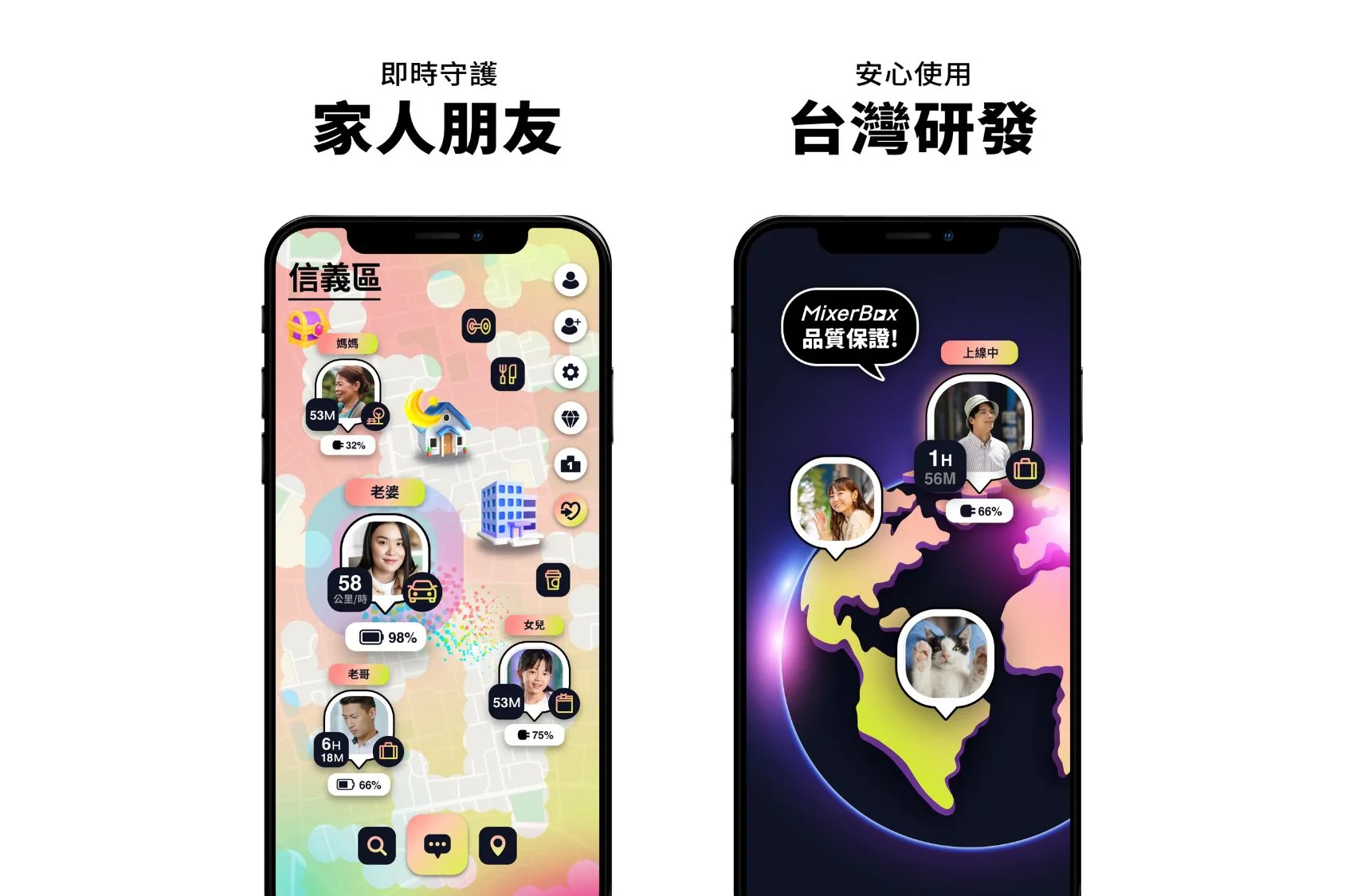
Most location-sharing apps offer an intuitive map interface. BFF marks each user’s location with their profile picture, along with how long they’ve stayed at that spot.
Beyond static locations, BFF can also show direction and speed of movement, so parents can tell whether their child is walking, riding in a vehicle or staying put. 🚶♂️🚗
BFF offers different options such as Apple Maps and Google Maps, and lets you switch between the default street view and satellite view. Street view helps parents pinpoint specific roads or buildings, while satellite view gives a broad overview of the surrounding area. You can also zoom and pan the map to look at the surroundings in more detail.
🟡 Tip 2: The new Timeline feature makes it easy to see where they’ve been
Where did your child go yesterday? How long did they stay? Who were they with?
The brand-new Timeline feature records your own — and your friends’ — travel times, movement trails, places visited and time spent at each one. One glance tells you where they’ve been over the past few days and for how long. 👀
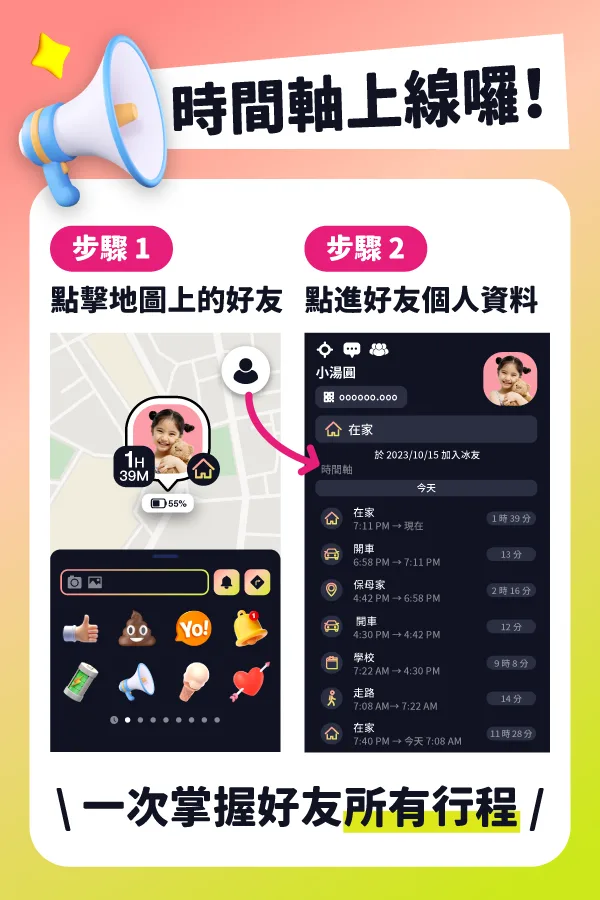
If you haven’t tried it yet, here’s how:
✅ Update to the latest version from the app store: https://mbapp.io/bff
✅ View your own timeline: Tap your profile picture in the top-right corner of the main map ➜ scroll to the bottom to see your recent timeline
✅ View a friend’s timeline: Tap a friend’s profile picture on the main map ➜ tap the profile picture in the top-right corner ➜ view that friend’s timeline
✅ Turn it off: If you’d like to turn off Timeline, change the permission in “Privacy Settings.” Once it’s off, no timeline will be shown — neither yours nor your friends’.
🟡 Tip 3: Set up custom personal places
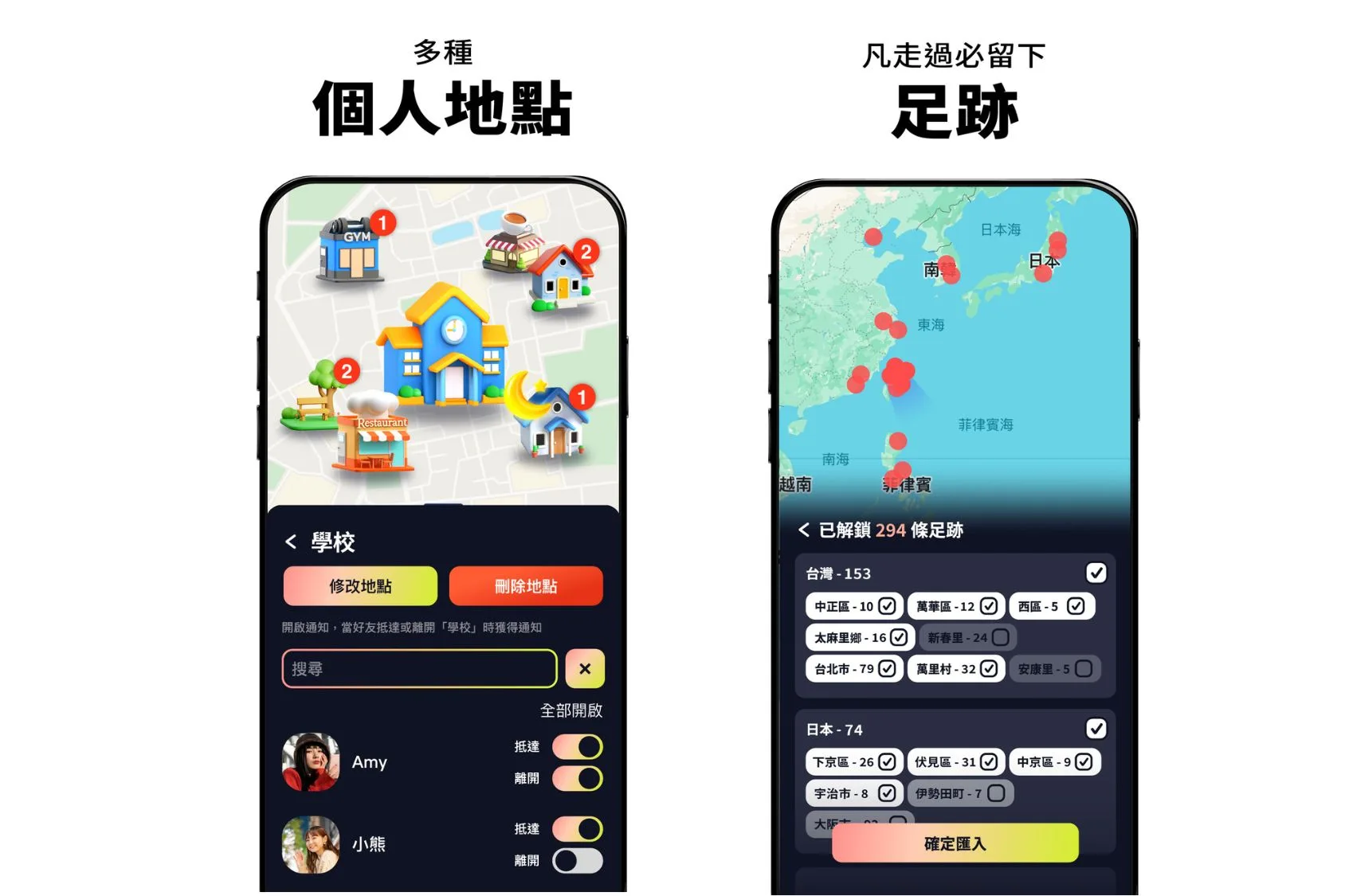
On MixerBox BFF, you and your loved ones can save places you visit often as personal places — everyday landmarks like home, school, tutoring centers and the office 📍.
Here’s how to set them up:
✅ Update to the latest version from the app store: https://mbapp.io/bff
✅ Open BFF and tap “⚙️ Settings” in the top right ➜ “Set Personal Places”
✅ Choose a place category and tap “Add” ➜ then “Edit Place Name” if you like
✅ Move the building icon to the target location and tap “✔️” — and you’re done!
MixerBox BFF offers 17 common place icons to choose from, and you can freely edit place names, too!
With the steps above, you can set up a “Home” personal place for free. Become a subscriber to get more personal places and unlimited arrival/departure alerts!
🟡 Tip 4: Turn on arrival/departure alerts
Once your personal places are set up, you can turn on arrival or departure alerts for family members at each place.
For example, after setting up your child’s “School” place, you can manually turn on your child’s “Arrival/Departure” alerts for school on that place’s page. Once enabled, you’ll get automatic push notifications when your child comes and goes — even if you don’t have the app open!
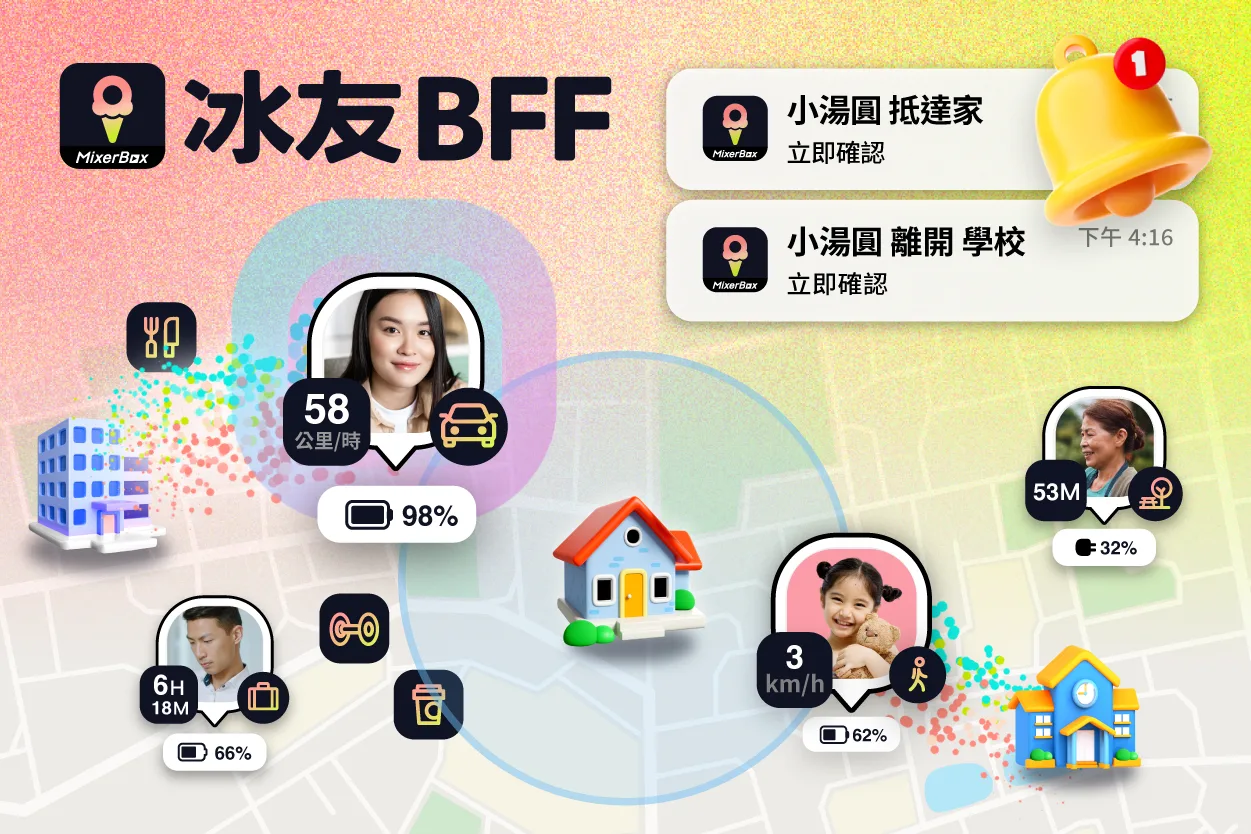
Here’s how to set them up:
✅ Make sure you’ve already set up a “Personal Place” (see Tip 3)
✅ Open BFF and tap “⚙️ Settings” in the top right ➜ “Set Personal Places”
✅ Tap a specific place to open its page ➜ scroll down to the friend you want alerts for ➜ turn on “Arrival/Departure Alerts”
🟡 Tip 5: Add a home screen widget
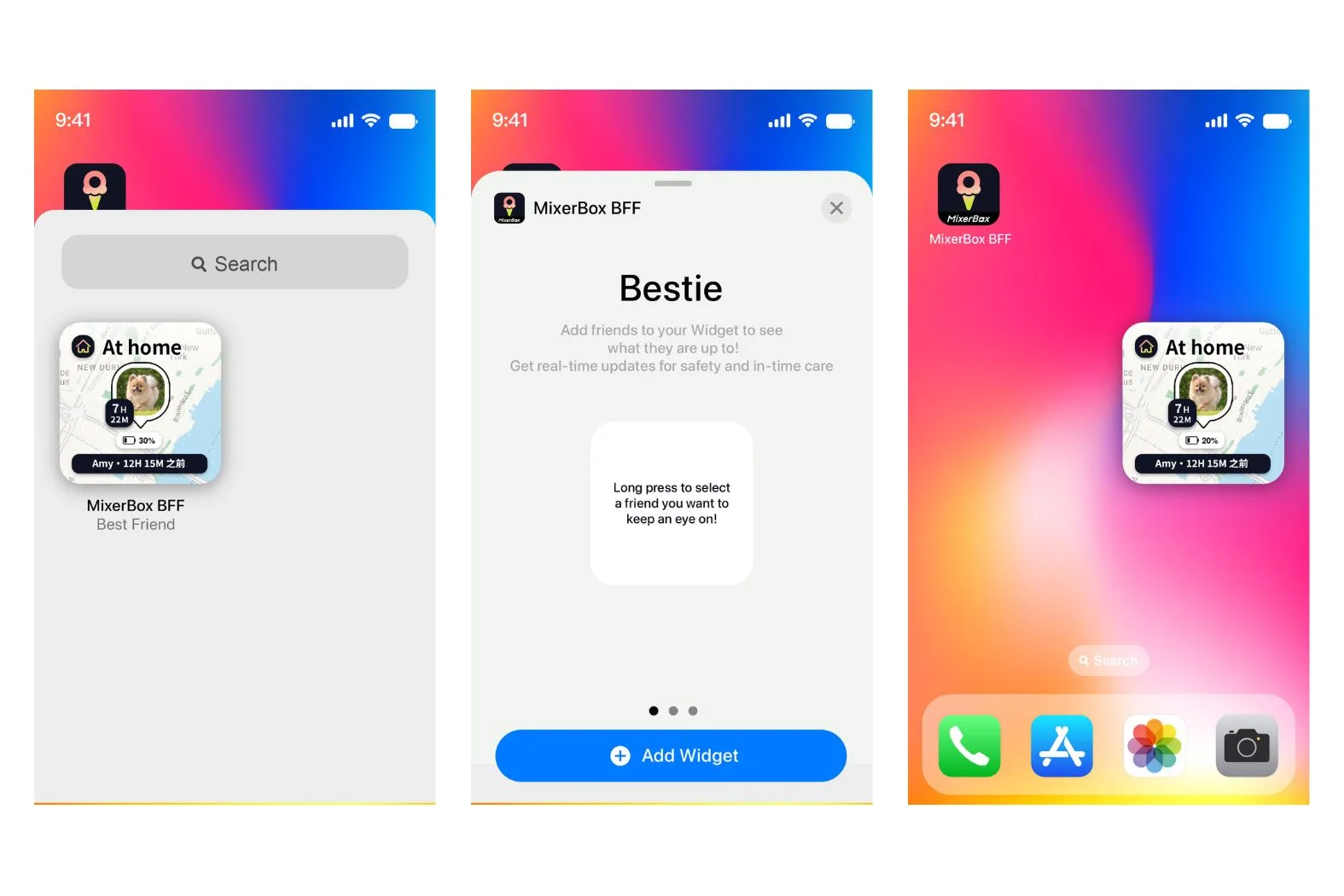
Want your family’s whereabouts right on your phone’s home screen, visible the moment you unlock it?
BFF offers a home screen widget. Once you set it up, you can see key information at a glance — your family’s real-time location 📍, time spent there 🕒, personal status 👤 and phone battery level 🔋. It’s free for both iOS and Android users!
iOS users, follow these steps:
✅ Long-press your home screen ➜ tap the “+” in the top-left corner ➜ scroll down to find “MixerBox BFF”
✅ Choose the widget size you want and tap “Add Widget” ➜ then tap “Done” in the top-right corner
✅ Long-press the widget and tap “Edit Widget” ➜ tap a friend’s name to choose a specific friend!
Android users, follow these steps:
✅ Long-press your home screen until the “Widgets” option appears ➜ scroll down to find “MixerBox BFF”
✅ Long-press the BFF widget and drag it where you want it
✅ Choose the friends you want to show on your home screen, and you’re all set!
🟡 Tip 6: Get automatic low-battery alerts
Last but definitely not least: turn on “Low Battery Alerts 🪫”!
Imagine this: you’ve finished all the setup above, but then your child heads out and their phone suddenly dies. Wouldn’t they instantly be out of reach?
Don’t worry — BFF has already thought of that. Here’s how to set it up:
✅ Open BFF and tap “⚙️ Settings” in the top right ➜ tap “Notifications 🔔”
✅ Tap “Friend Activity Alerts”
✅ Choose the friend you want ➜ turn on that friend’s “Activity Alerts,” which also turns on “Low Battery Alerts”
Once that’s done, whenever a family member’s phone battery runs low, you’ll get a thoughtful heads-up on your phone, so you can remind them to charge it before you lose touch!
This feature is especially useful in situations that call for longer-term tracking, such as when your child goes out alone or goes on a trip. It prompts parents to get in touch in time and keep checking in on their location. It also helps children become more aware of managing their devices, teaching them how important it is to keep their phone charged when they’re out.
Sharing Comes from Trust and Understanding
A location-sharing app gives parents real peace of mind, letting us give our kids independence while still making sure they’re safe at all times. By making good use of features like real-time location, custom places and arrival/departure alerts, downloading the BFF app can help you keep better track of your child’s whereabouts while still giving them a healthy amount of freedom.
But remember: even the most advanced technology is no substitute for trust and understanding between parents and kids. When you use tools like this, remember to respect your child’s privacy, and ideally talk with them about why and how you’re using it. That way you can keep them safe without making them feel micromanaged. Because true safety comes from the invisible bond between family members.
More articles:
Can’t Be Together for Qixi (Chinese Valentine’s Day)? 5 Creative Ways to Celebrate Long-Distance
Product information:
MixerBox BFF is available as a free download on the App Store and Google Play: https://mbapp.io/bff
MixerBox BFF on Facebook: https://www.facebook.com/MixerBoxBFF
MixerBox BFF on Instagram: https://www.instagram.com/mixerboxbff_tw/